Cline v3.39 introduces Explain Changes: understand AI-generated code before you ship it
Understand AI-generated code before you ship it



The bottleneck in software development has shifted. Writing code used to be the hard part, but with coding agents like Cline, you can generate multi-file changes in seconds. The hard part now is understanding what was done.
You finish a Cline task, it succeeds, you click "View Changes," and a diff opens with 15 files and 400 lines changed. Now what? You're supposed to review this before committing, but parsing dense diffs is slow and mentally exhausting. The temptation is to skim, approve, and hope nothing breaks while passing the burden of review to a teammate.
This isn't a sustainable way to work. As Cline takes on more of the authoring, your value moves upstream: understanding what was done, catching issues, making judgment calls. You might not write every line yourself, but you're still responsible for what ships. That responsibility depends on actually comprehending the changes.
The cost of not understanding
The time cost of code review is well documented. Research shows that developers spend 58-70% of their time on program comprehension, not writing code, but understanding it. Code reviews account for 2-5 hours per day for many teams, and reviewing code is fundamentally harder than writing it: when you write code, you build mental models incrementally; when reviewing, you must reconstruct those models from static artifacts.
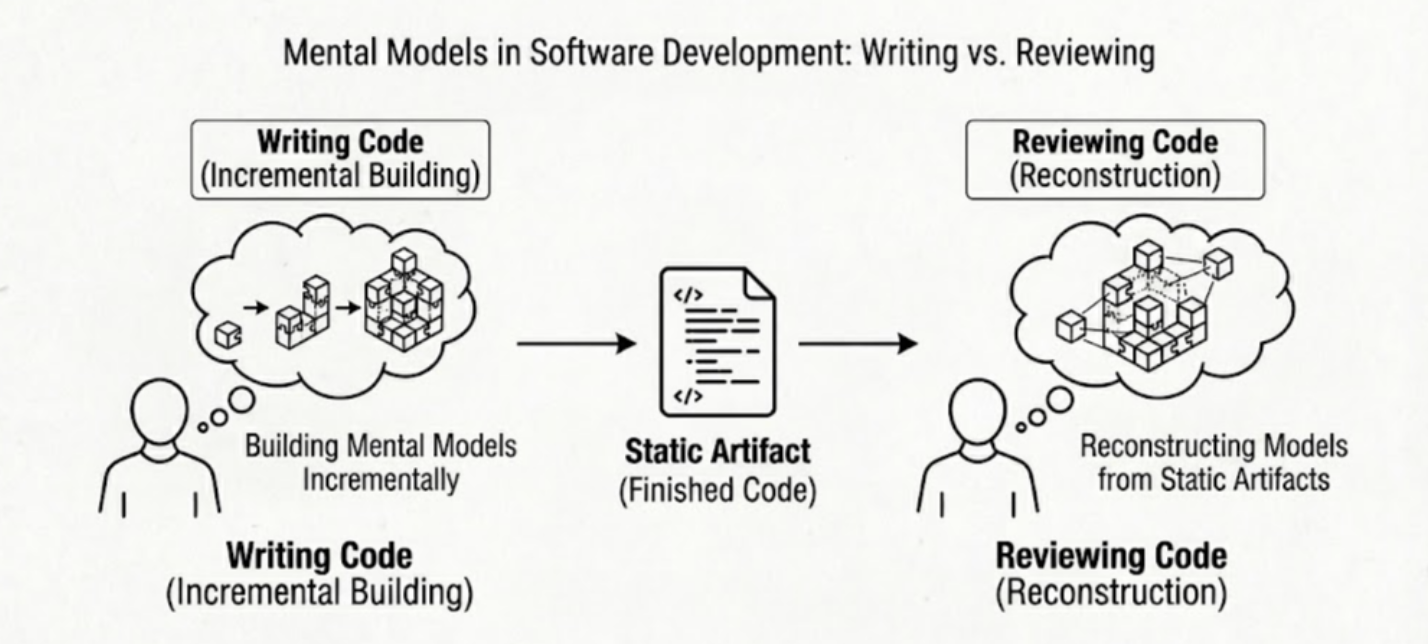
With Cline generating larger, more complex changes than you'd typically produce manually, the comprehension burden only grows. And the cognitive science is clear: each time you switch between the diff view, the chat context, and your mental model of the codebase, you pay a penalty. Traditional review interfaces, which separate explanations from the code, force exactly this kind of context switching.
The result? Developers resort to shortcuts. A portion of pull requests receive only superficial review. A quick 'LGTM' without substantive examination. This "rubber-stamping" is a rational response to cognitive overload, but it leads to undetected bugs, accumulated technical debt, and eroded code quality.
The question isn't whether to review, it's how to make the review actually work.
Why explainability matters
Explainable AI (XAI) has emerged precisely because AI systems that can't explain their reasoning create barriers to trust and adoption. McKinsey's State of AI survey found that 40% of organizations identify explainability as a key risk in adopting generative AI—yet only 17% are actively working to mitigate it. This gap between recognizing the problem and solving it represents one of the largest barriers to realizing value from AI.
For developers working with AI coding tools, the stakes are concrete: if you can't understand why Cline made particular choices, you can't calibrate your trust appropriately. You either over-rely on suggestions or under-utilize the tool by rejecting valuable work. Neither serves you well.
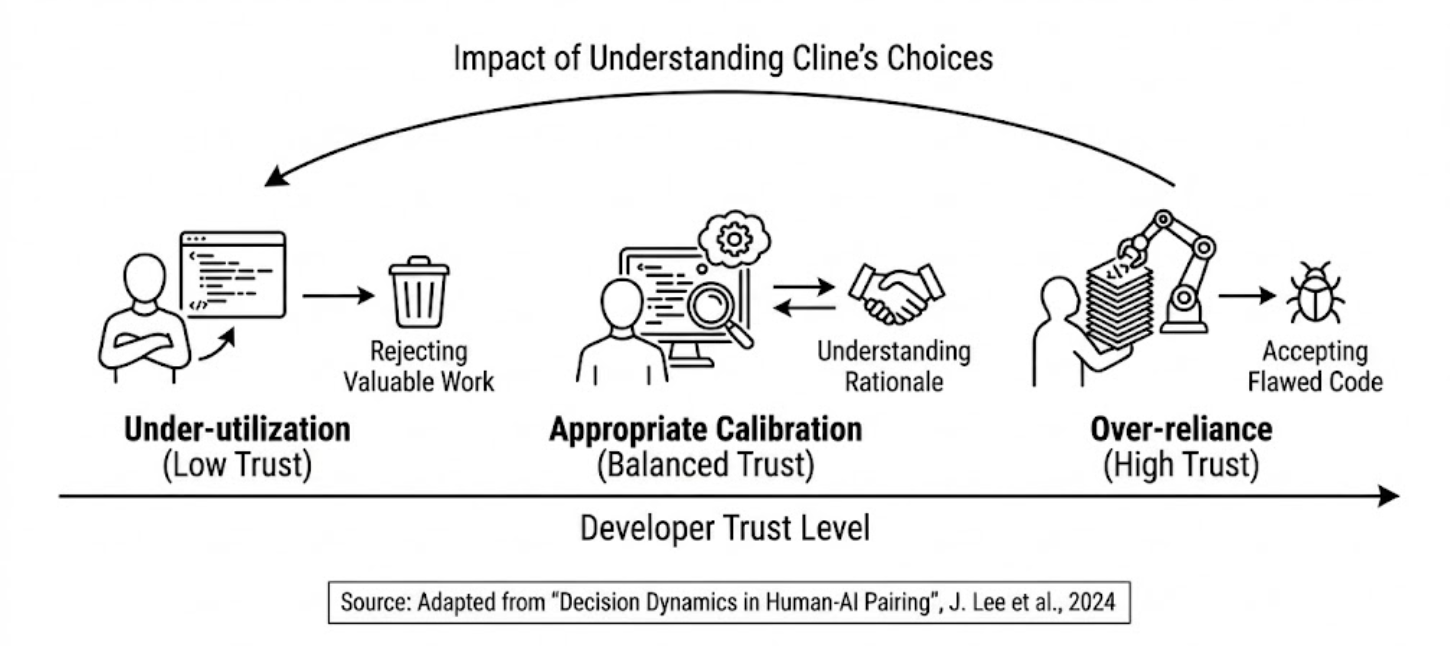
AI tools provide relief from repetitive work, but they also introduce new complexities: the overhead of validating AI output, the challenge of maintaining mental models for both traditional code and AI-driven transformations, and the work of integrating AI-generated artifacts into your existing architecture. Human-centered design principles suggest that AI systems should adapt to how developers actually think and work, not force disruptive new workflows.
That's the principle behind Explain Changes: make comprehension a first-class part of the development process, not an afterthought.
How Explain Changes works
Explain Changes closes the comprehension gap. After Cline completes a task with file changes, you'll see an Explain Changes button alongside the "View Changes" button. Click it, and Cline opens the multi-file diff view with inline explanations streaming in as comments.
These aren't summaries in a sidebar or chat responses you have to scroll through. The explanations appear as comments placed exactly where the changes are, walking through what changed and why. Because Cline has the full conversation context, the explanations go beyond describing what the code does – they explain the reasoning behind the decisions.
Why inline explanations matter
The design of Explain Changes reflects research on how developers actually process code:
For the technical details on how to use this feature, see the Explain Changes documentation.
Interactive comment threads
The comments aren't static. Each one has a reply input where you can ask follow-up questions about that specific piece of code:
- "Why did you use this approach instead of X?"
- "Can you explain this pattern in more detail?"
- "What would happen if we changed this to Y?"
Cline responds with context-aware answers, understanding both the code being discussed and the original task.
If a conversation in a comment thread becomes complex or you want Cline to take action based on the discussion, click the title area of the comment thread to move the entire conversation into Cline's main chat input. From there, you can continue working with full Cline capabilities.
Explain any git diff
Understanding code isn't limited to Cline-generated changes. The /explain-changes slash command lets you explain any git diff: commits, branches, tags, PRs, staged changes, or your working directory.
Here's how you can start using /explain-changes:
Understand the last commit. You pull the latest changes from your team. Instead of manually tracing through the diff, run /explain-changes to get inline explanations of what your teammate changed and why.
Review a PR before approving. A colleague asks you to review their pull request. Run /explain-changes for PR #42 to get explanations before you dig into the code manually. You'll enter the review already understanding the intent behind the changes.
Investigate a bug. Something broke in production. Run /explain-changes for the last 5 commits to understand what changed recently. The explanations help you narrow down which change likely introduced the issue.
Catch up on a project. You haven't touched this codebase in weeks. Run /explain-changes since v2.0.0 to understand everything that's changed since you last worked on it.
The slash command works independently of Cline's task workflow; it just needs a git repository. For PRs, you'll need the GitHub CLI installed. Full details are in the /explain-changes documentation.
When to use it
Explain Changes is most valuable when you're facing changes you didn't write yourself or can't immediately understand:
- Before committing Cline-generated changes. This is the primary use case. Make sure you understand what Cline did before you approve it.
- During code review. Use
/explain-changeson a PR to get explanations before you dig into the code manually. - When onboarding to unfamiliar code. If you're new to a codebase, explaining recent commits helps you understand how things work and why decisions were made.
- When something breaks. Explain the last few commits to understand what changed and narrow down the issue.
Getting started
Explain Changes requires Checkpoints to be enabled for the button-triggered workflow. The /explain-changes slash command works independently using git references.
Try it on your next Cline task, or use /explain-changes to understand any diff in your repository.